
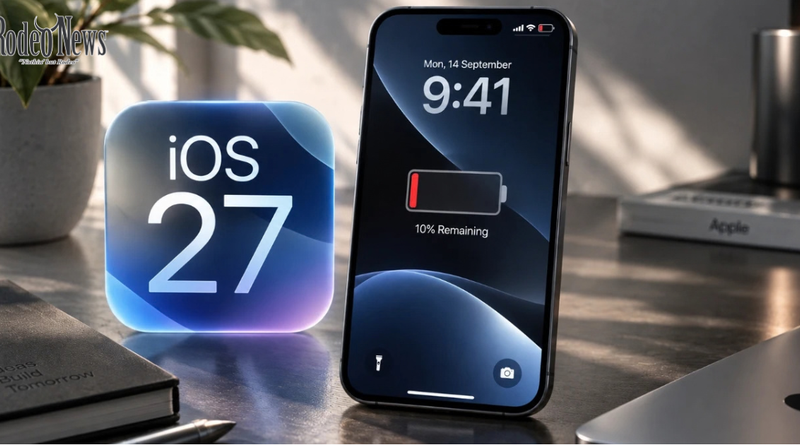
iOS 27 Battery Drain: 7 Fixes That Actually Help
If you have noticed iOS 27 battery drain after updating your iPhone, there is an important detail to understand before changing dozens of settings: increased battery consumption immediately after a major iOS update can be temporary.
Apple says that certain update-related tasks can continue running in the background after installation. Those activities can affect both battery life and thermal performance while the iPhone completes its post-update work. AApple Support
That means an iPhone that suddenly feels warmer or loses battery faster does not necessarily have a permanent battery problem.
However, if the battery drain continues for several days, it is worth investigating. Apple provides several tools inside the Battery settings that can help identify which apps and system activities are responsible.
Here are seven practical ways to troubleshoot iOS 27 battery drain without immediately resorting to drastic measures.
Why iOS 27 Battery Drain Can Happen
A major iOS update does considerably more than install new features.
After an update, the iPhone can continue performing background activities related to system setup and optimization. Apple specifically identifies activities such as an ongoing iOS update and ongoing device setup as possible reasons for temporary changes in battery life and thermal performance. AApple Support
Apple’s current battery documentation recommends waiting a few days after an update before judging whether battery performance has genuinely deteriorated.
This is particularly important immediately after installing a major release. Your normal daily battery pattern may not return until those background processes have finished.
So, if you installed iOS 27 recently, patience may actually be the first battery-saving step.
1. Check Battery Usage Before Changing Settings
The first thing to do when investigating iOS 27 battery drain is check which apps or system activities are using the most power.
Open:
Settings > Battery
Apple’s current iPhone documentation provides a Daily Usage view that compares your battery consumption with previous days. You can also examine individual apps and system activities to see how much battery they have consumed. AApple Support
This information is more useful than simply looking at the percentage shown in the status bar.
For example, an app may show substantial background activity even when you have barely opened it. Another app may be responsible for unusually high battery consumption because it is using location services, syncing data or performing another background task.
The Battery section can therefore help distinguish a system-wide problem from an issue caused by one particular application.
2. Give iOS 27 Time to Finish Its Background Work
This is perhaps the most important point for anyone experiencing battery problems immediately after the update.
Apple recommends waiting a few days if battery life decreases after updating an iPhone. According to Apple, certain update-related tasks continue in the background and can temporarily affect battery life and thermal performance. AApple Support
During this period, you may notice:
- Faster battery consumption
- More heat during normal use
- Increased background activity
- Shorter screen-on time
- Changes in battery usage compared with previous days
These symptoms can be concerning, but they do not automatically mean the battery has been damaged.
If the phone has only recently been updated, monitor it for several days before performing major troubleshooting steps.
3. Update Your Apps
Another potential source of unusual battery consumption is app compatibility.
Developers regularly release updates following major iOS releases. An older version of an application may not be fully optimized for the latest operating system, potentially causing crashes, excessive background activity or unusual resource consumption.
To check for updates, open the App Store, tap your account picture and look for available app updates. Apple also provides an Update All option for manually installing available updates. AApple Support
Keeping your apps current is especially useful after a major iOS update.
If one particular application appears near the top of the Battery usage list, check whether a newer version is available before assuming that iOS itself is responsible.
4. Reduce Background Battery Consumption
If the Battery screen shows that particular applications are consuming significant power while running in the background, investigate those apps individually.
Background activity can include tasks such as syncing information, fetching mail, playing audio, tracking location or other operations that occur while the application is not visibly open.
Apple’s battery documentation identifies background activity as one of the factors that can increase battery consumption. AApple Support
You do not necessarily need to disable every background feature.
Instead, concentrate on apps that are using unusually large amounts of battery. If an app is not important, reducing its background permissions or usage may help.
This targeted approach is preferable to switching off a large number of iPhone features without knowing whether they are actually responsible for the problem.
5. Use Low Power Mode When Necessary
If your iPhone is losing power faster than expected, Low Power Mode can provide a temporary way to extend battery life.
Apple says Low Power Mode reduces the amount of power used by the iPhone by changing or limiting certain functions. Depending on the device and software version, this can include background activity and some visual effects. AApple Support
On newer iPhone models, Apple places the relevant controls under:
Settings > Battery > Power Mode
You can also add Low Power Mode to Control Center for quicker access. AApple Support
Low Power Mode is particularly useful when you need your iPhone to last through the remainder of the day.
It should not necessarily be viewed as the permanent solution to iOS 27 battery drain, however. If the problem continues for days, investigate the underlying cause using the Battery settings.
6. Consider Adaptive Power
Some supported iPhones also have access to Adaptive Power, Apple’s more automated approach to managing battery consumption.
Apple says Adaptive Power can adjust performance and other settings when the iPhone detects that more battery power than usual is being used. On supported models, it can also automatically activate Low Power Mode when the battery reaches 20 percent. AApple Support
The feature is designed to work in the background rather than requiring constant manual adjustments.
To check the setting, Apple currently lists the path as:
Settings > Battery > Power Mode > Adaptive Power
Availability depends on the iPhone model and software version.
For compatible devices, Adaptive Power can be useful if your daily usage varies significantly and you want the system to make some battery-saving adjustments automatically.
7. Check Battery Health
Not every battery problem is caused by iOS 27.
An aging physical battery can also result in shorter battery life. If your iPhone has been used for several years, battery health should therefore be part of the investigation.
Apple provides battery-health information directly in Settings. On iPhone 15 and later, users can access battery information through Settings > Battery > Battery Health. Older compatible models use Battery Health & Charging. AApple Support
The Battery Health screen can provide information about the battery’s capacity and, on supported models, additional details such as cycle count.
If Apple displays a service recommendation, the issue may be related to the battery’s physical condition rather than iOS 27 itself.
That distinction matters.
Replacing or servicing an aging battery is a different solution from changing software settings.
What About iOS 27 Overheating?
Battery drain and overheating can sometimes appear together after a major software update.
Apple explains that post-update activities can temporarily affect thermal performance as well as battery life. AApple Support
Therefore, mild additional warmth shortly after installing iOS 27 may be related to background processing.
However, persistent or unusually severe heat should not simply be dismissed as a normal consequence of the update.
If the iPhone continues becoming excessively warm after the initial post-update period, check Battery usage for unusual activity and make sure your apps are updated. If the behavior remains unexplained, Apple’s support resources are the appropriate next step.
Don’t Immediately Factory Reset Your iPhone
A factory reset is sometimes suggested as a solution to almost every iPhone software problem.
It should not be the first response to normal post-update battery changes.
Apple’s own guidance says to wait a few days after an update if battery life has decreased because background tasks can temporarily affect battery performance. AApple Support
A reset also requires preparation because it can erase personal data and settings.
Before considering a drastic measure such as erasing the device, first:
- Check Battery usage.
- Update your apps.
- Give the system time to complete post-update processing.
- Check battery health.
- Use Low Power Mode when necessary.
- Look for unusual background activity.
- Contact Apple Support if the problem continues.
This approach gives you a much clearer picture of what is actually happening.
Should You Be Worried About iOS 27 Battery Drain?
For users who installed iOS 27 recently, temporary battery drain is not necessarily a reason to panic.
Apple explicitly acknowledges that battery life can be affected for a period after a software update because certain tasks continue in the background. AApple Support
Independent reporting has also described increased battery consumption and heat among some users after the iOS 27 update, with background indexing, app updates and other system processes cited as possible contributors. 99to5Mac+1
The key issue is duration.
A noticeable change shortly after updating can be part of the normal post-update process. A problem that continues well beyond that period deserves closer investigation.
The Battery settings are the best starting point because they can reveal whether an application, system process, poor cellular signal or another activity is consuming more power than usual.
The Bottom Line
The best iOS 27 battery drain fix may initially be doing less rather than more.
If you have only just installed iOS 27, give the iPhone time to finish its background tasks. Apple specifically recommends waiting a few days and checking battery performance again. AApple Support
If the problem persists, use the Battery section in Settings to identify the cause. Update your apps, investigate excessive background activity, use Low Power Mode when needed and check the physical health of your battery.
Most importantly, avoid assuming that every battery problem is an iOS bug.
Battery performance depends on software, apps, signal strength, screen usage, battery age and many other factors. Apple’s current Battery tools make it possible to investigate those factors rather than relying on guesswork.
For more information, see Apple’s official iPhone battery support guide and iPhone battery usage and health guide.
Suggested Internal Links
- iOS 27 Battery Drain: Why It Happens and How to Fix It
- iOS 27 Checklist: The First Settings and Features to Check
- Should You Install iOS 27 Right Away? What to Know First
The source article for this report is Geeky Gadgets’ iOS 27 battery drain and overheating guide. GGeeky Gadgets
Image ALT Text
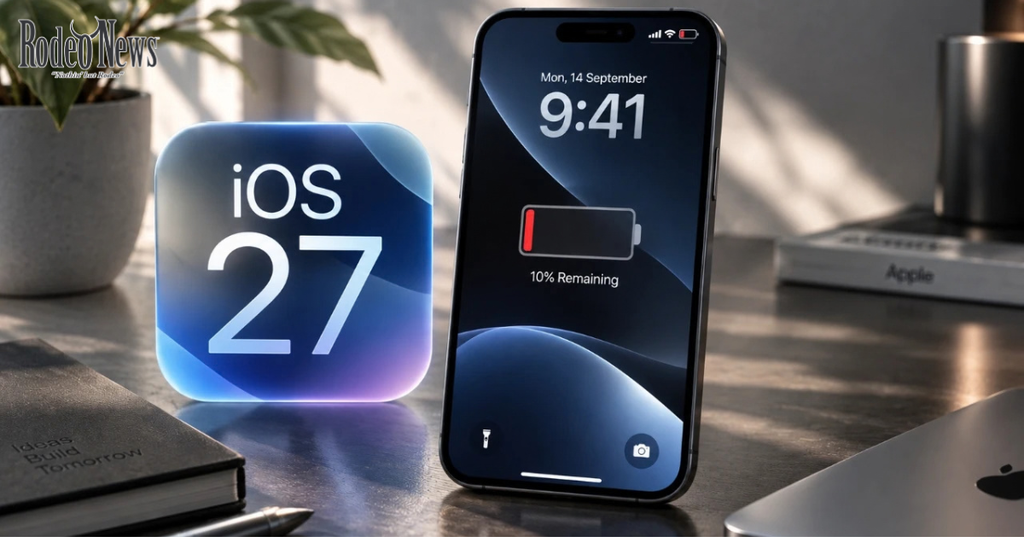
iOS 27 battery drain fix showing iPhone Battery settings
This version is ready to adapt for WordPress. If you provide your target website/domain, I can also tailor the internal-link structure and anchor text to that site’s existing content.